Documentation Index
Fetch the complete documentation index at: https://docs.orderprotection.com/llms.txt
Use this file to discover all available pages before exploring further.
The Skio integration keeps Order Protection on the subscriptions
where it belongs — automatically on subscriptions that already had
Order Protection on the originating order, and on existing
subscriptions where the customer or merchant has opted in. Order
Protection is added by API to those subscriptions’ upcoming charges,
with no theme edits, no liquid changes, and no customer-facing
portal work.
How it works
Skio sends Order Protection a webhook every time one of your subscriptions places an order. For each event:- If the originating order had Order Protection on it, we keep it on the subscription and attach Order Protection as a one-time line on the next subscription charge. The cycle continues for every charge as long as the subscription stays active.
- If the subscription has been opted in to Order Protection by the customer or merchant, we attach Order Protection on the next charge in the same way — even if Order Protection wasn’t on the original checkout.
- Otherwise, nothing changes. Skio bills the subscription exactly as it did before; Order Protection is not added.
Installation
Generate a Skio API Token
Open your Skio dashboard and click the API button in the left
navigation, then create a new API token.The token must have write permission for subscription lines —
Order Protection uses Skio’s
addSubscriptionLine mutation to attach
OP to upcoming charges. A read-only token will be accepted by Skio
but Order Protection will not be added to charges, and you’ll see
silent failures in the integration logs.Copy the generated token; you’ll paste it into Order Protection
in the next step.Configure the API Token in Order Protection
In the Order Protection dashboard, go to Integrations and select
Skio.
- Paste your Skio API Token into the API Token field.
- Toggle Validate Token on Save on. The dashboard will call Skio’s API to confirm the token is accepted before saving.
- Click Save.
SKIO_TOKEN_INVALID error — double-check the token’s scope and try
again.Copy the Webhook URL from Order Protection
Once the API token is saved, the integration page exposes a
per-merchant webhook URL of the form:Copy this URL.
Register the Webhook URL with Skio
Back in the Skio dashboard, navigate to Settings → API & Integrations
→ Webhooks and paste the URL you copied from Order Protection.Save the webhook configuration. Skio will display a Webhook Token
— copy this token.
The webhook token is generated by Skio after you save the URL.
Order Protection uses this token to authenticate every incoming
webhook delivery, so deliveries with a missing or mismatched token
are rejected with
401 Unauthorized.Save the Webhook Token in Order Protection
Return to the Order Protection Skio integration page, paste the
webhook token Skio gave you into the Webhook Token field, and
click Save.Billing automation is now wired up. The next steps configure the
customer-facing widget so existing subscribers can opt in.
Create the Subscription Widget in Order Protection
The widget that renders inside Skio’s customer portal pulls its
styling and element layout from a Subscription Widget config
in the Order Protection admin. Without one, the widget falls back
to a generic default — functional, but unstyled.In the Order Protection dashboard, navigate to Customizations →
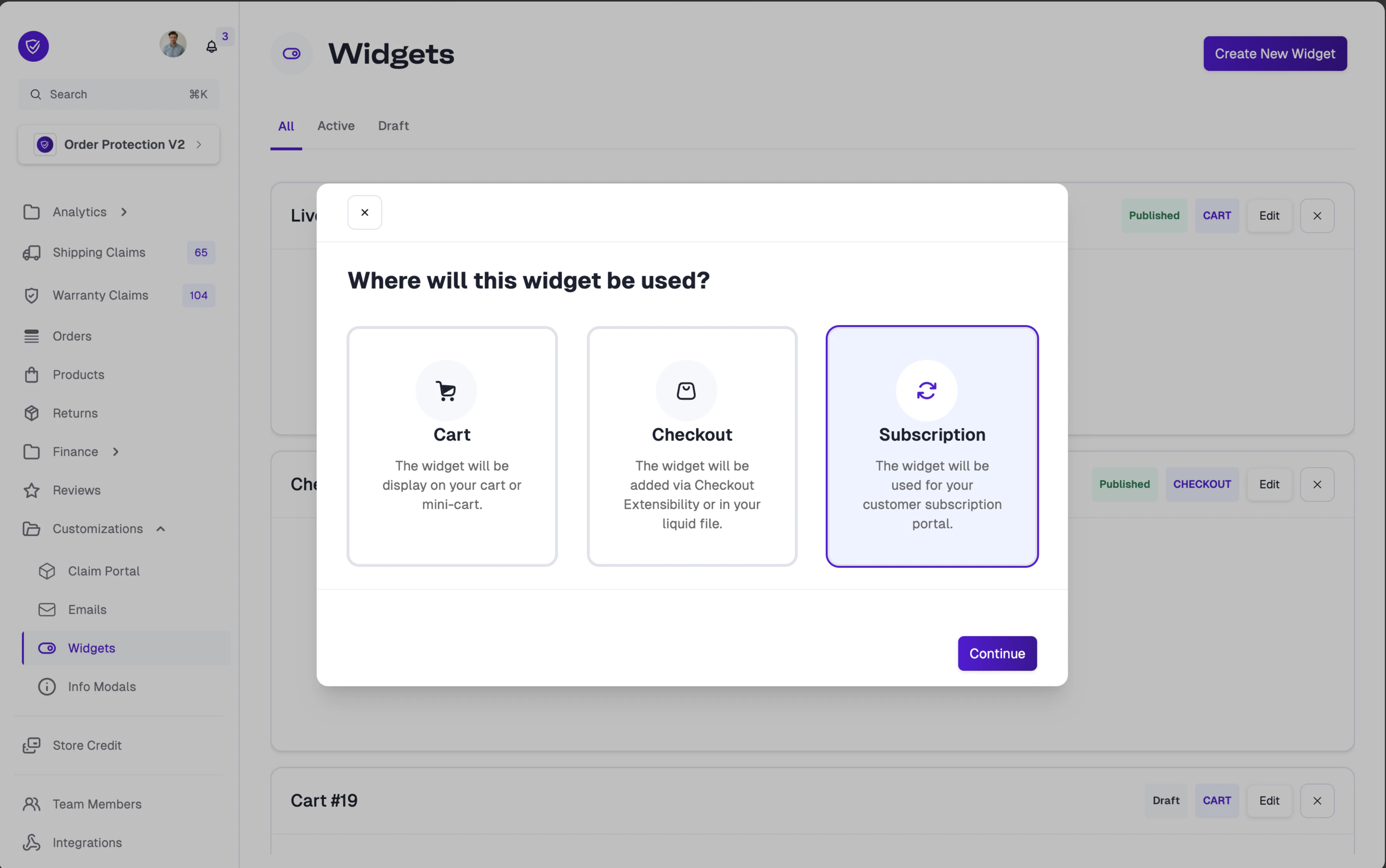
Widgets and click Create New Widget. In the modal:
- Select Subscription as the widget type. The description reads: “The widget will be used for your customer subscription portal.”
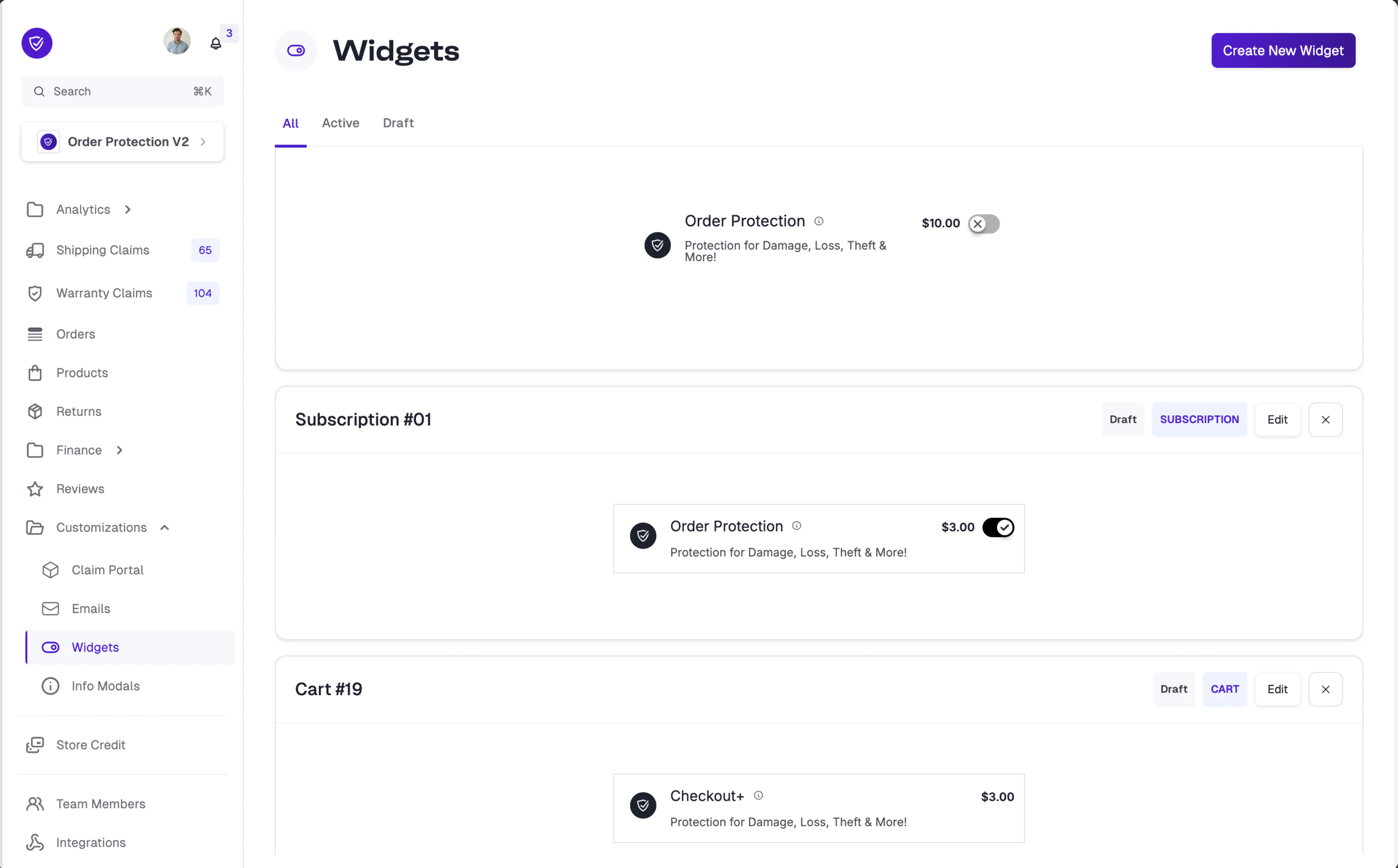
- The widget is created with the Toggle variant (the only variant supported for subscription widgets today) and an auto-generated name like Subscription Widget.
The widget config and the customer-portal snippet are linked by
your Shopify domain — there’s no widget ID to copy or paste.
Once the widget is Active, the snippet you’ll install in the
next step picks it up automatically on the next page load.
Add the Order Protection widget to your Skio customer portal
In the Skio admin, navigate to Customer Portal → Portal settings
→ Custom block (HTML/JS). Paste this entire block into a custom
block placed where you want the Order Protection toggle to appear
(typically next to the subscription summary):That’s the entire install:
Skio custom block
<order-protection>is the Order Protection web component. The bootstrap script tags it with the rightinstance-idat runtime — don’t hardcode one yourself.- The bootstrap script is identical for every merchant. At
runtime it reads
window.Shopify.shop, resolves your brand’s widget bundle (cdn.orderprotection.com/subscriptions-widget/<your-brand-slug>/widget.js), and renders the toggle inside<order-protection>. No URL editing required.
Once the webhook token is saved and the widget snippet is in place,
Order Protection runs end-to-end:
- Subscriptions whose originating order had Order Protection keep getting it on every upcoming charge automatically — no customer action required.
- Existing subscribers can opt in (or out) any time from their Skio customer portal via the widget you just installed. Their next charge picks up the new state.
What gets added (and what doesn’t)
- Customers who originally checked out with Order Protection: Order Protection is added as a one-time line on each upcoming Skio charge. The price is calculated from the subscription cart subtotal using your existing Order Protection price tiers.
- Existing subscribers who have opted in to Order Protection: same treatment — Order Protection is added to upcoming charges for as long as the subscription is opted in.
- Subscribers who didn’t originally buy Order Protection and haven’t opted in: nothing changes — Skio charges them the same as it did before.
- Cancelled subscriptions: Order Protection stops being added to charges as soon as Skio sends the cancellation webhook.
Webhook events Order Protection listens for
| Skio event | What we do |
|---|---|
orderPlaced | Look up the order in Order Protection, persist a subscription record on first delivery if the originating order had OP, and queue Order Protection for the next charge if the subscription is OP-active |
Subscription cancelled | Mark the subscription inactive — no further Order Protection charges |
Subscription interval/date update | Update our record of the next billing date |
Subscription created | Logged for observability — we wait for orderPlaced before doing anything |
Troubleshooting
Webhook deliveries are returning 401 Unauthorized
Webhook deliveries are returning 401 Unauthorized
Order Protection isn't being added to upcoming charges
Order Protection isn't being added to upcoming charges
Most common cause: the Skio API token doesn’t have write permission
for subscription lines. Regenerate the token in Skio with the
correct scope and re-save it in Order Protection. The
Validate Token on Save check confirms Skio accepts the token,
but Skio doesn’t surface scope information at validation time —
insufficient scope only shows up when the actual
addSubscriptionLine call fires.Also confirm the subscription is OP-active: subscriptions that
didn’t originate with Order Protection only get it once they’ve
been opted in.A subscription has Order Protection twice
A subscription has Order Protection twice
Order Protection is attached as a one-time line, so it should
consume after a single billing cycle. If you see a duplicate, the
likely cause is a renamed Order Protection product on the merchant
side — Order Protection’s deduplication matches by vendor
(
Order Protection) first and falls back to the product title.
Confirm the OP product in your Shopify store still has the
Order Protection vendor set.The widget renders but with default styling (no merchant customization)
The widget renders but with default styling (no merchant customization)
The customer portal is loading the snippet and the widget bundle,
but the Subscription Widget config in the Order Protection admin
is either missing or still in Draft. In that case the widget
falls back to a bundled default config so it still renders.Fix: in the Order Protection dashboard, go to Customizations →
Widgets, open the Subscription widget (create one if it
doesn’t exist), and click Publish. The next page load in the
Skio portal picks up the new config.
The widget toggle isn't rendering in the Skio portal
The widget toggle isn't rendering in the Skio portal
The bootstrap script loads your brand’s widget bundle from
A
cdn.orderprotection.com/subscriptions-widget/<your-brand-slug>/widget.js
where the slug is derived from your Shopify domain (e.g.
acme-store.myshopify.com → acme-store). If that URL returns a
404, the bundle hasn’t been built yet and the widget can’t render.
Verify with:200 OK confirms the bundle is live. On 404, your Onboarding
& Implementation manager can trigger a Cart Deployment from the
Order Protection admin dashboard to build it.Did you know? You can customize the Order Protection widget styling specifically for your subscription portal. When creating a new widget, select Subscription as the widget type to create a dedicated subscription widget.