Documentation Index
Fetch the complete documentation index at: https://docs.orderprotection.com/llms.txt
Use this file to discover all available pages before exploring further.
Below is a general overview of how payments work at OrderProtection.com. Please note that when payments are made depends on your contract — so if you have any questions about your exact timeline or payment terms, be sure to refer to your agreement or reach out to your Customer Success Manager (CSM).
How to View Your Payment Invoices
Navigate to Payments
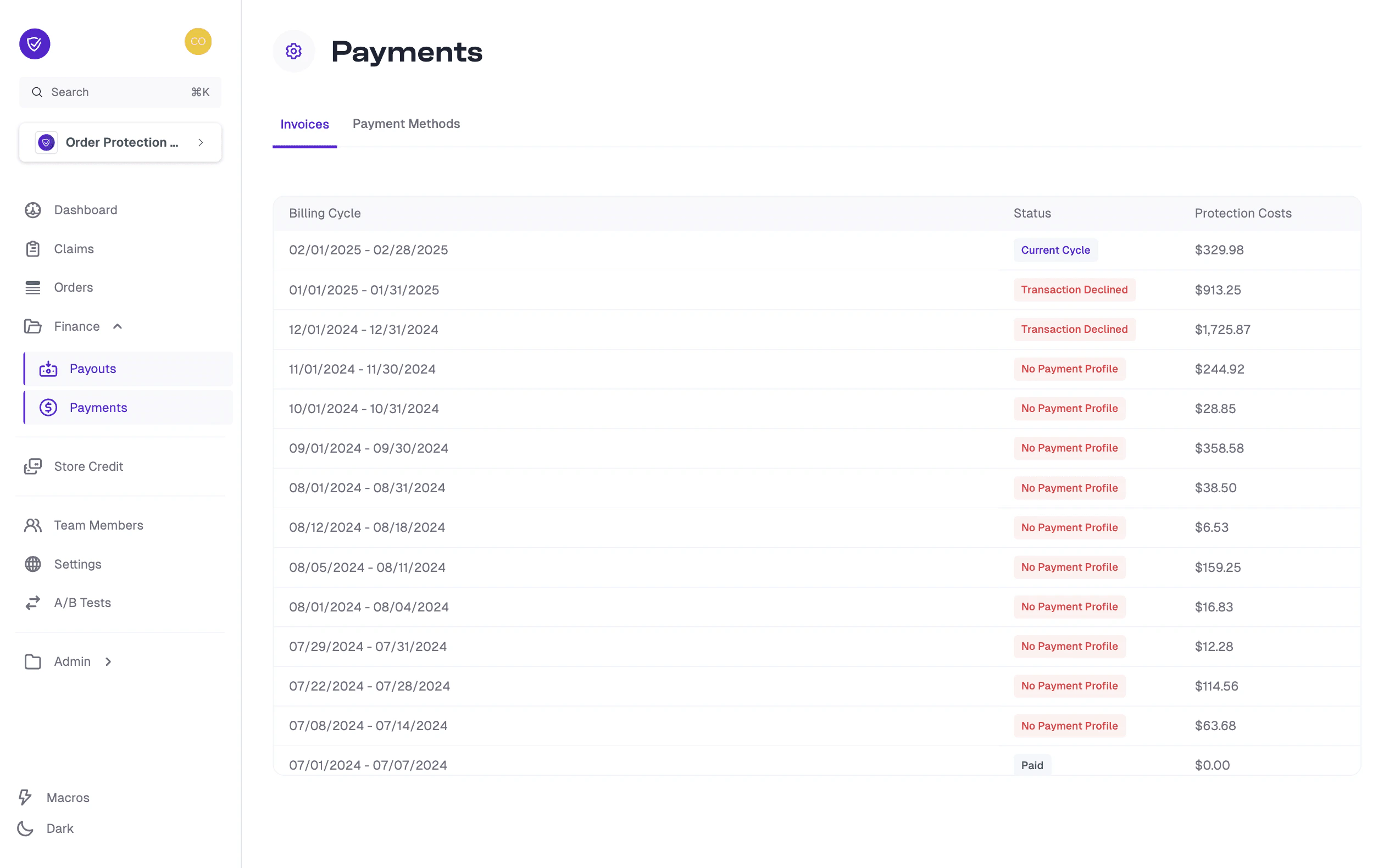
Go to Finance in the left-hand menu and select Payments.
Browse billing cycles
In the Invoices tab, you will see a list of your billing cycles (e.g., “01/01/2025 — 01/31/2025”).
View order details
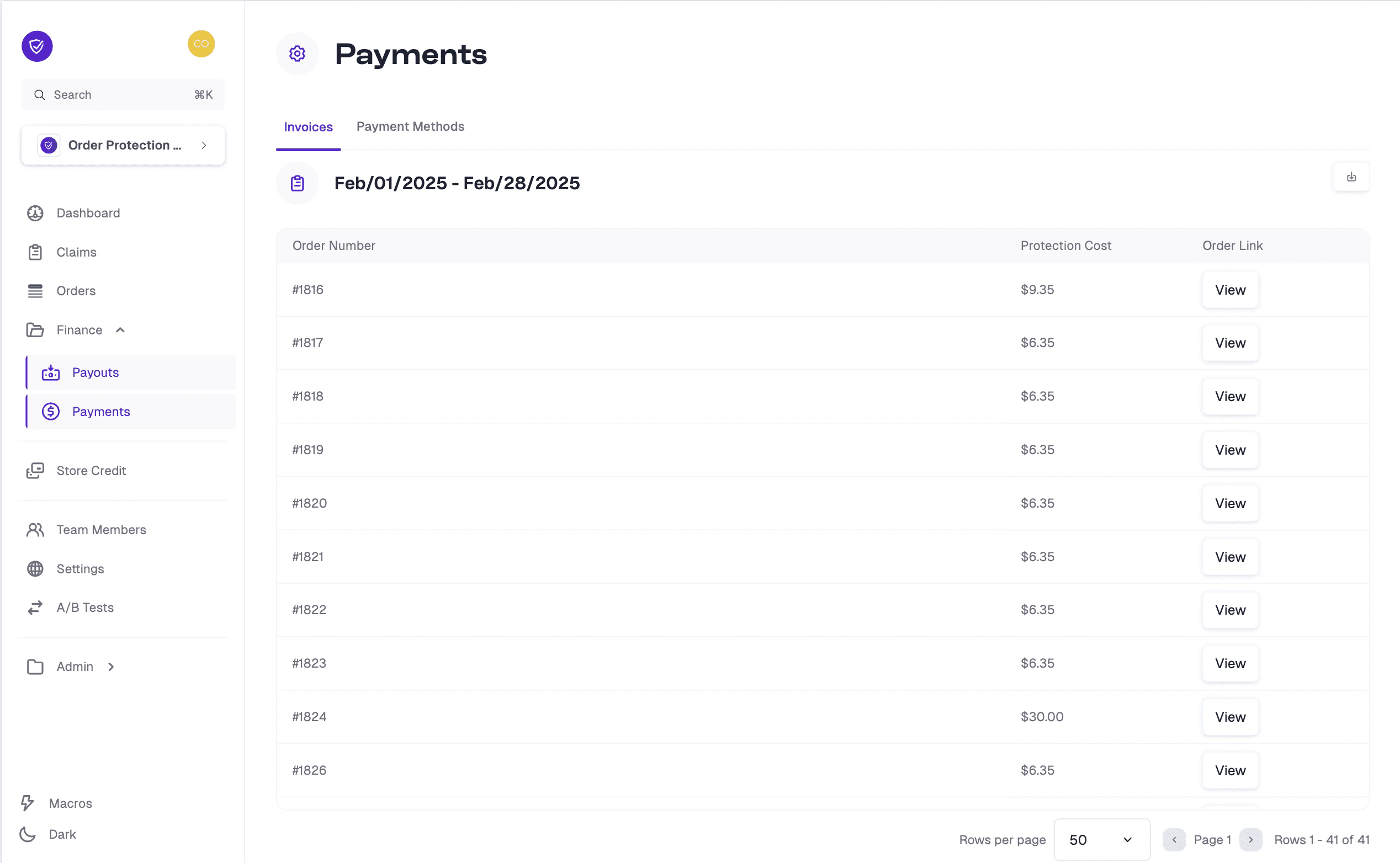
Click on a specific billing cycle date range to view all of the orders that contributed to the invoice during that period. Each order lists its Protection Cost, and the total of these costs makes up the invoice amount for that billing cycle.
How to Manage Payment Methods
Navigate to Payment Methods
Navigate to Finance > Payments in the left-hand menu.
View existing methods
Click the Payment Methods tab at the top. Here, you can see all the payment methods currently associated with your account.
How to Add a Payment Method
Open the form
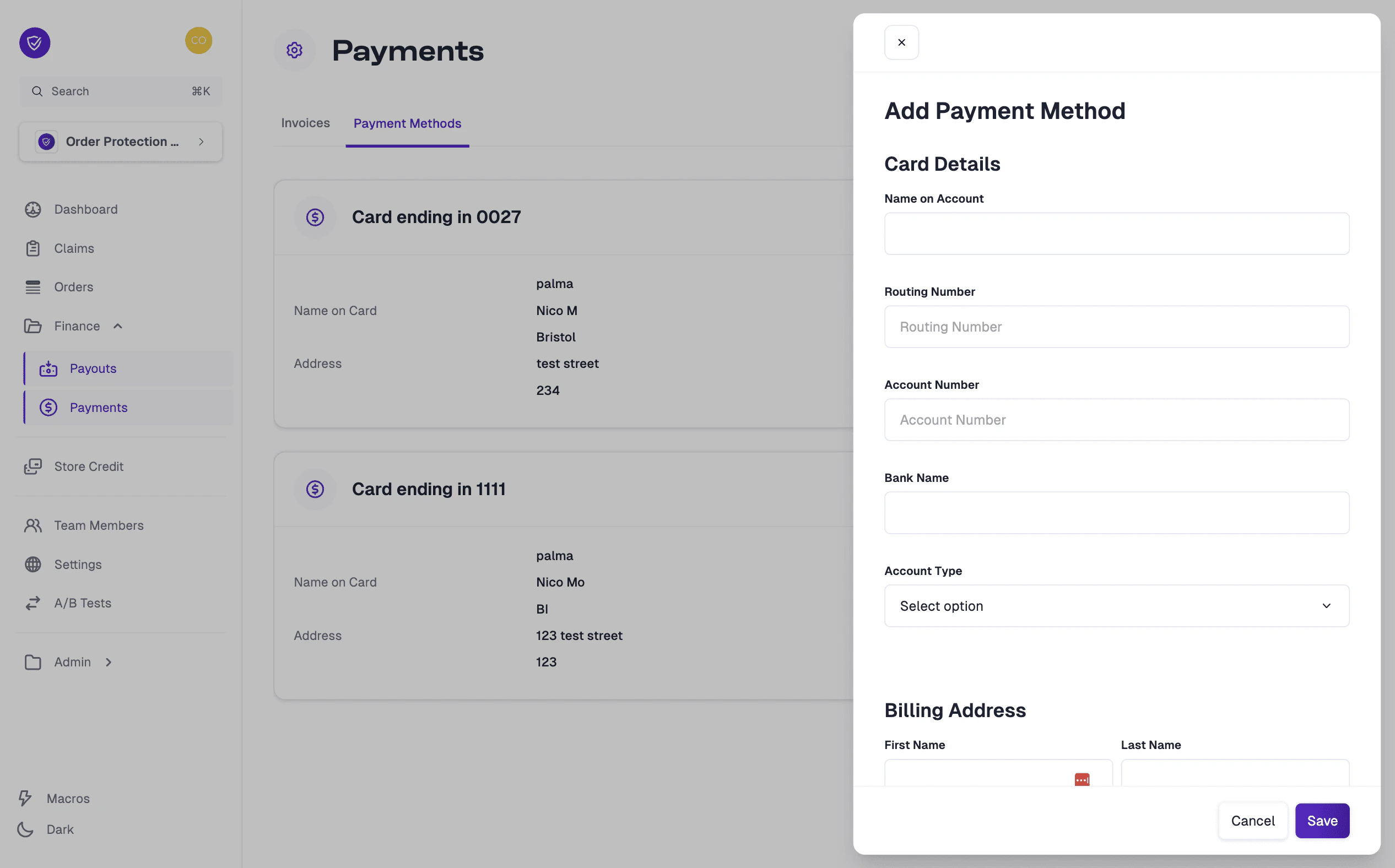
In the Payment Methods tab, click the Add Payment Method button.
Select payment type
OrderProtection.com accepts ACH (electronic bank transfer) or credit card payment methods. Select the type of payment you wish to add.
Enter your details
Enter the required card or bank information in the form provided, and fill in the Billing Address fields accurately.
Save
Click Save to confirm and add the new payment method to your account.
How to Set a Payment Method as Default
Locate the payment method
In the Payment Methods tab, locate the payment method you’d like to set as default.
Open the action menu
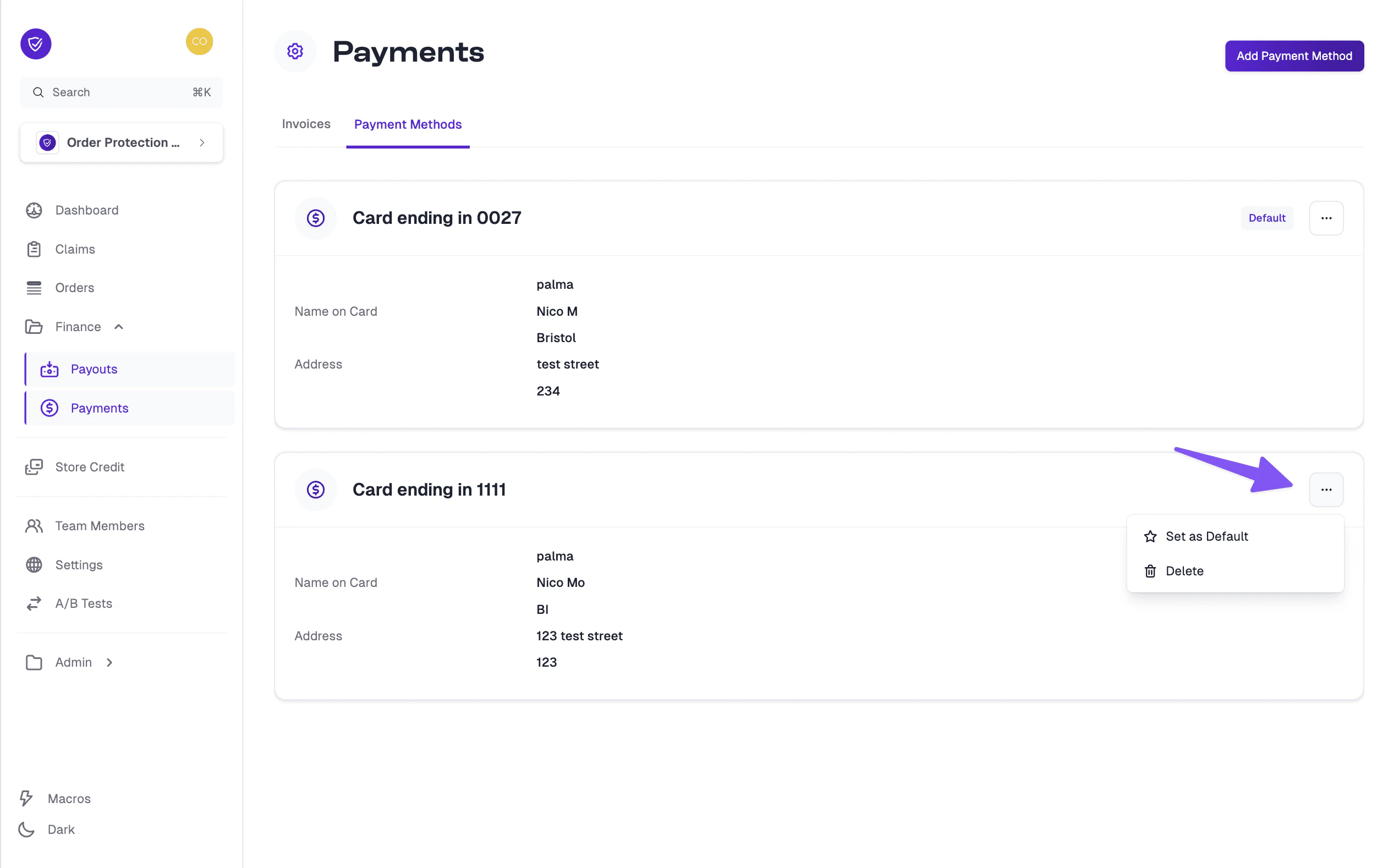
Click the … (three dots) icon to open the action menu.
Set as default
Select Set as Default from the dropdown options. The chosen payment method will now appear as your default in the list.
 For any additional questions regarding payment timing, amounts due, or troubleshooting payment issues, please refer to your contract or contact your CSM for assistance.
